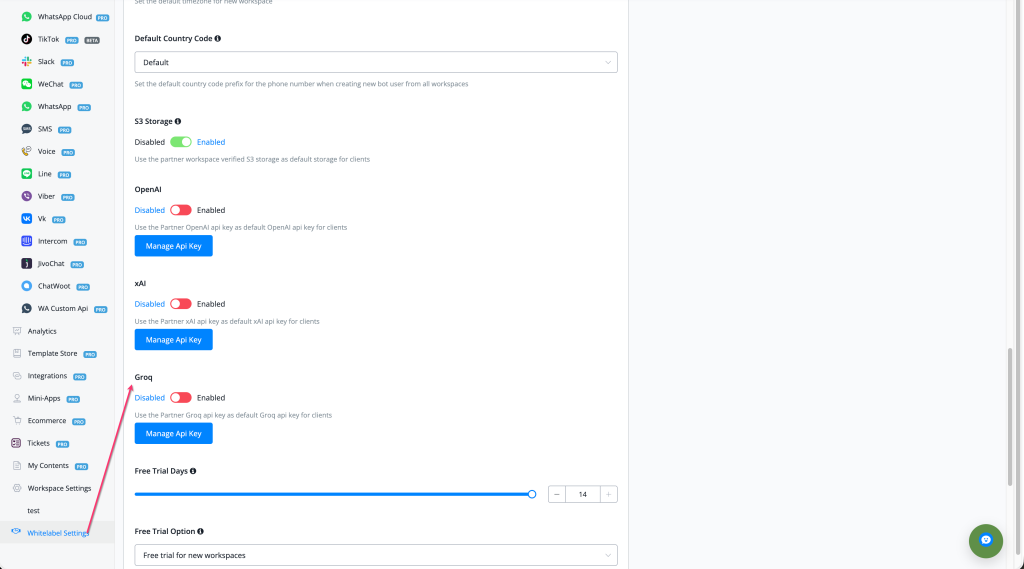
Feature: add Partner Groq in Partner settings, allow to use partner groq api key for clients
Partner Setting — Use Partner Groq API Key as Default for Clients
Partners can now configure their own Groq API key in Whitelabel Settings and set it as the default Groq key used across all client workspaces — completing the full AI provider key management trio alongside OpenAI and xAI.
What's New
- 🔑 New Partner Setting: Groq — found under Whitelabel Settings below the OpenAI and xAI partner key sections
- 🔄 Toggle Enabled/Disabled to activate the partner Groq key as the default for all client workspaces
- 🛠 Manage API Key button — add, update, or rotate the Partner Groq API key at any time
- 🤖 When enabled, all client workspaces use the partner's Groq key by default — no per-client Groq key setup required
- ⚡ Powers Groq-based features across client workspaces including AI Agents, AI Tasks, and the new Groq whisper-large-v3-turbo audio transcription
How to Use
- Go to Whitelabel Settings in the left sidebar
- Scroll to the Groq section (below OpenAI and xAI)
- Toggle the switch to Enabled
- Click Manage API Key to enter your Groq API key
- All client workspaces will now use your partner Groq key as their default — no per-client configuration required
Full documentation: Partner Setting — Global Groq AI Integration
Full Partner AI Key Settings (as of this release)
ProviderSettingDescriptionOpenAI | Partner OpenAI | Use partner OpenAI key as default for all clients
xAI | Partner xAI | Use partner xAI key as default for all clients
Groq | Partner Groq (new) | Use partner Groq key as default for all clients
xAI | Partner xAI | Use partner xAI key as default for all clients
Groq | Partner Groq (new) | Use partner Groq key as default for all clients