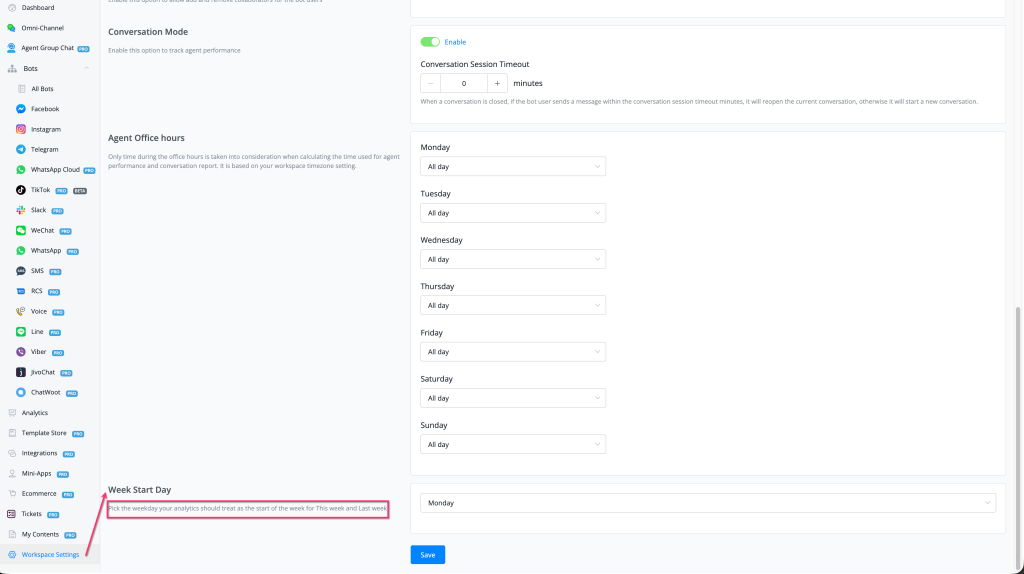
Feature: add Week Start Day in workspace settings for Analytics report options This Week and Last Week
## New Feature
### Week Start Day Setting in Workspace Settings
You can now configure which day of the week your analytics treat as the **start of the week** — directly affecting the **"This Week"** and **"Last Week"** date range filters across all Analytics reports.
#### What's New - 📅 **New setting: Week Start Day** — found under Workspace Settings → Agent Office Hours section - 🗓 Choose any day (Monday–Sunday) as your week's anchor day - 📊 Immediately affects the **"This Week"** and **"Last Week"** date range options throughout Analytics reports - 🌏 Works in conjunction with your workspace timezone setting
#### How to Use 1. Go to **Workspace Settings** in the left sidebar 2. Scroll down to the **Week Start Day** section 3. Select your preferred start day from the dropdown (default: **Monday**) 4. Click **Save** 5. Analytics reports using **"This Week"** or **"Last Week"** filters will now calculate ranges from your chosen start day
#### Why It Matters - Teams operating on a Sunday–Saturday work week (common in the US and Middle East) can now align analytics to their actual business week - Ensures "This Week" and "Last Week" comparisons are consistent with internal reporting standards - Removes ambiguity when reviewing agent performance and conversation reports across different regional teams