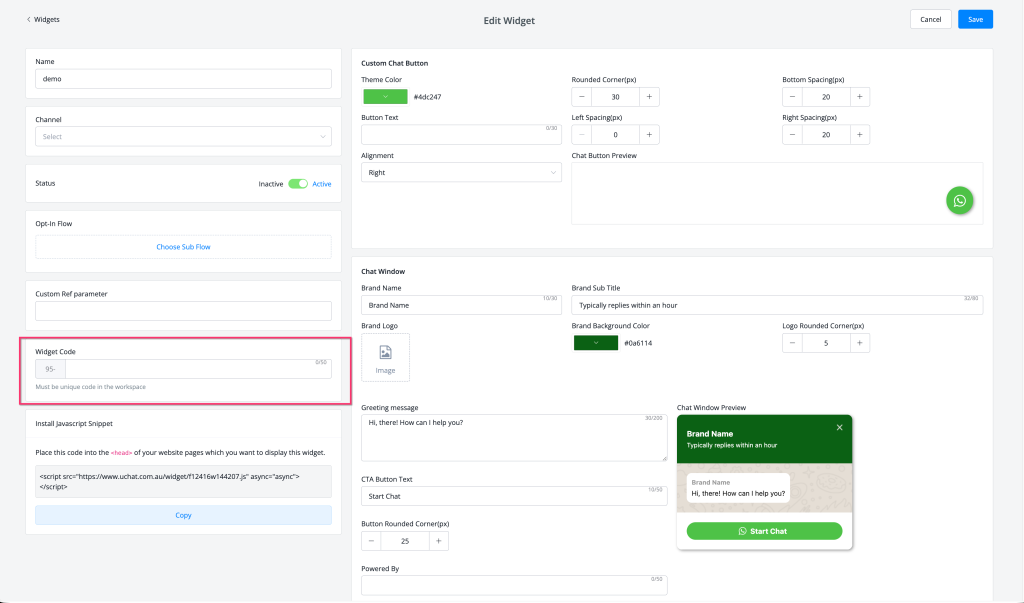
Feature: allow to use Widget Code in the install script url for Chat Button type widget
Widget Code in Install Script URL — Chat Button Widget
The Chat Button widget now supports a custom Widget Code field — allowing you to use a short, memorable code instead of the auto-generated numeric widget ID in the install script URL.
What's New
- 🔢 New field: Widget Code — a unique, editable code for your widget (e.g., 95-yourbrandname) added to the Edit Widget screen
- 🔗 The Widget Code is used directly in the Install JavaScript Snippet URL, replacing the default numeric ID
- ✅ Must be unique within the workspace — a validation hint is shown below the field
- 📋 Install snippet updates automatically when a Widget Code is set — copy it directly from the widget editor
Install Script Format
<!-- With Widget Code -->
<script src="https://www.uchat.com.au/widgetf/{WidgetCode}" async="async"></script>

<!-- Example -->
<script src="https://www.uchat.com.au/widgetf/12416w/144207.js" async="async"></script>
How to Use
- Go to Mini-Apps → Widgets and open or create a Chat Button type widget
- In the Widget Code field (highlighted in red, left panel), enter a unique code for your widget
- The code must be unique within your workspace
- Copy the updated Install JavaScript Snippet from the bottom of the left panel
- Paste the snippet into the <head> of your website pages where you want the chat button to appear
Why It Matters
- Gives partners and whitelabel users human-readable, branded widget URLs instead of opaque numeric IDs
- Makes it easier to manage and identify widgets across multiple client websites
- Simplifies widget deployment scripts when managing many sites — recognisable codes are less error-prone than long numeric IDs
👉 Located at: Mini-Apps → Widgets → Edit Widget → Widget Code Published: February 9, 2026