Newest updates

Partner Plan: templates created inside custom domain will be only available for custom domain users


This is an update about Partner / Agency / Agency Plus.

Before the update, templates created from a workspace under your custom domain will be all added to the UChat public template store and all UChat users can install it.

Now, templates created from a workspace under your custom domain, will not be added to UChat public template store. Only users under your custom domain can access it.

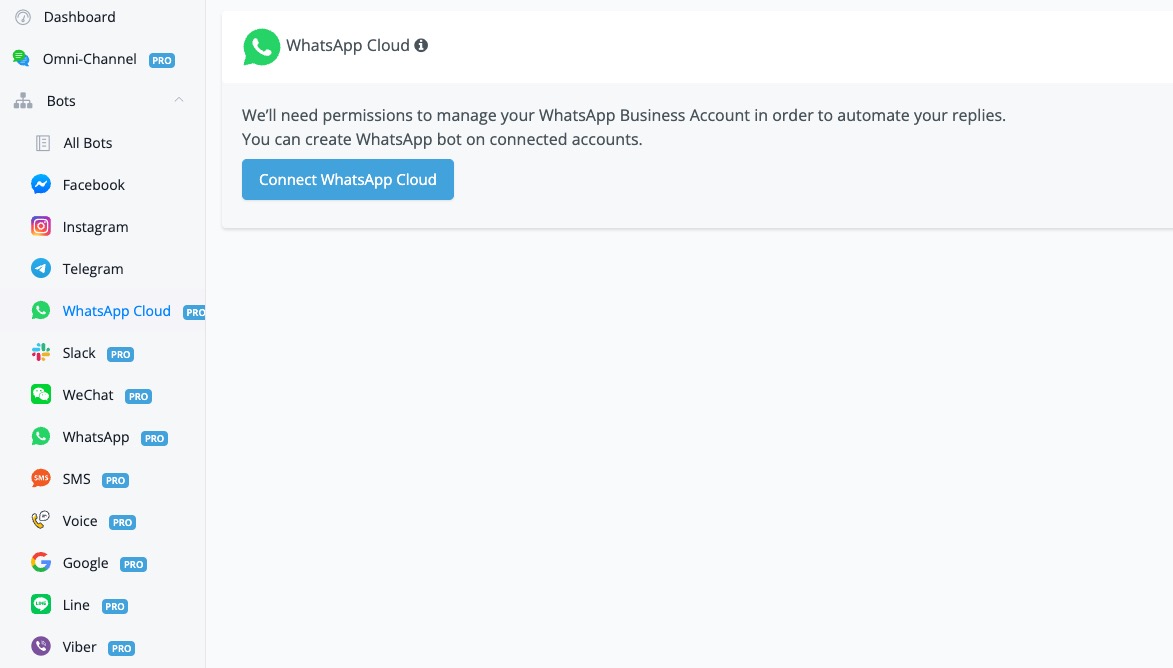
Released WhatsApp Cloud API as new Channel

You can now build your whatsapp chatbot with cloud API.

Demo video:
https://www.youtube.com/watch?v=OWM1OBGkwYc
https://www.youtube.com/watch?v=4p--1BpzQYc

Help documentation:
https://docs.uchat.com.au/guide/cloudapi.html

Image 2022-06-13 at 3.42.49 pm.jpg 61.46 KB

Add "update user profile" action for Facebook

You can find this action under "Advanced actions", and after using this action, user_name first_name, last_name, gender, locale, language, timezone, image will be updated.
image (37).png 27.48 KB

Add new operator & improve on the set variable action

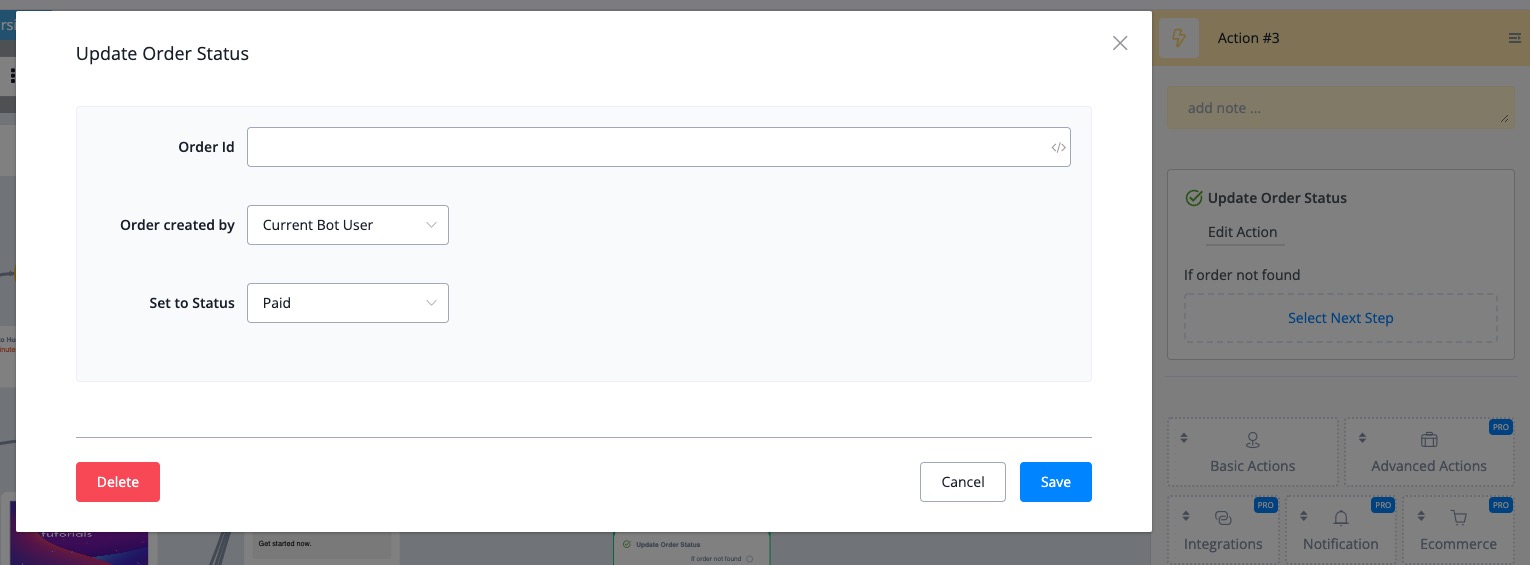
Add "update order status" action

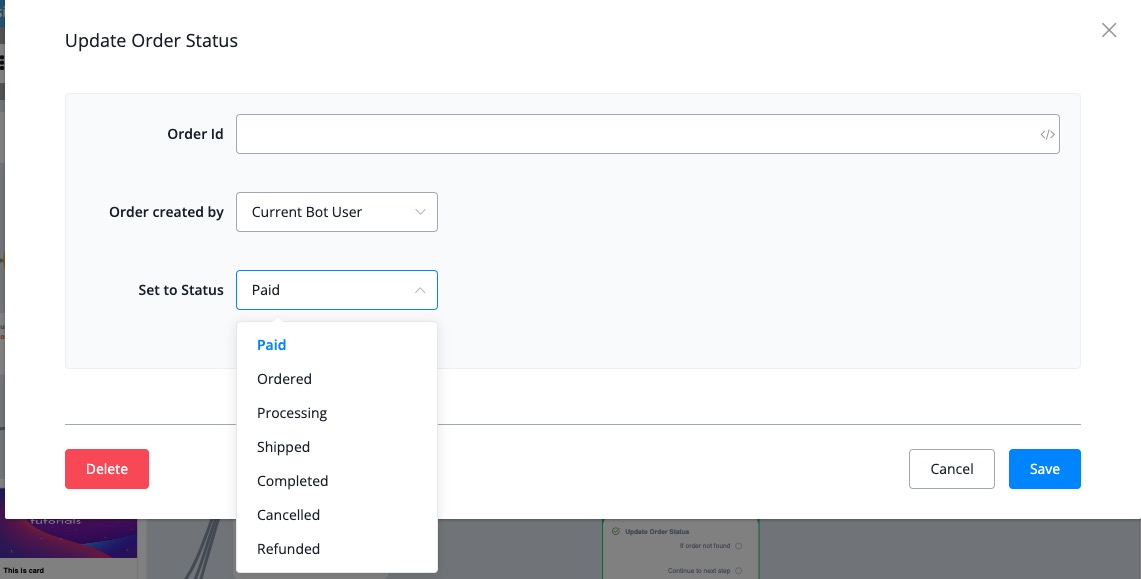
Add the update order status, you can update the order by ID, and also you can set the status to paid/ordered/processing/shipped/completed/cancelled/Refunded

Add support to send WhatsApp single product message & Multiple products messages

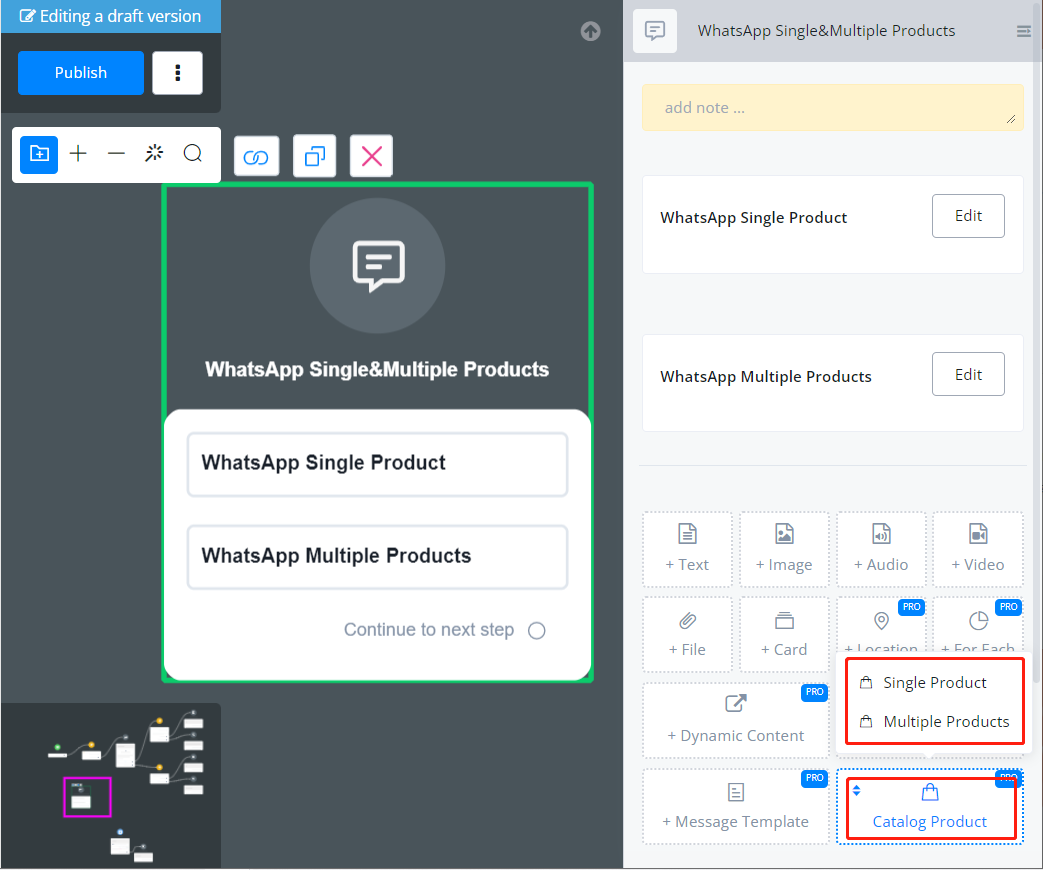
Add support to send WhatsApp single product message & Multiple products messages(catalog ID and product ID required)

image (36).png 56.36 KB

Add WhatsApp & Telegram Notification Action

You can now send notification to your WhatsApp & Telegram Account

Default TTS for multiple language in Voice Channel


This is an update about Voice Channel - Tools - Multiple Languages.

Before the update, when you switch language, the default TTS setting in the Start Step is not changed accordingly.

You can now add a default TTS for a language so that the default TTS language change when you switch to this language:

https://i.imgur.com/iHIim5d.png


Note that the priority for TTS voice is:

Node level TTS > Set language level TTS > Sub flow level TTS

https://i.imgur.com/TBfDuoC.png


Send WhatsApp Single / Multiple Product Message


This is an update about the WhatsApp channel - Send Message Step.

Two new message types are added to the Send Message Step in the WhatsApp channel.

They are "Single Product" and "Multiple Products", find them in the "Catalog Product":

https://i.imgur.com/KAqt4m8.png


Catalog Id and Product Id are required:

https://i.imgur.com/9OiLWsb.png


Send WhatsApp & Telegram Notification in the Action Step!!


This is an update about Action Step - Notification.

Before the update, you are able to send SMS, Voice, Email and Slack Notifications.

Now you can also send WhatsApp and Telegram notifications!!

In an action step, select "Notification":

https://i.imgur.com/suLMYaz.png


WhatsApp Notification:

Select a sender from the "From Phone Number" list. A valid sender must have a WhatsApp bot connected to it in the same workspace.

Besides, the receiver must be an existing bot user in the WhatsApp bot, plus, within the 24 hours window. Otherwise, the action fails.

https://i.imgur.com/Ea3kEan.png


Telegram Notification:

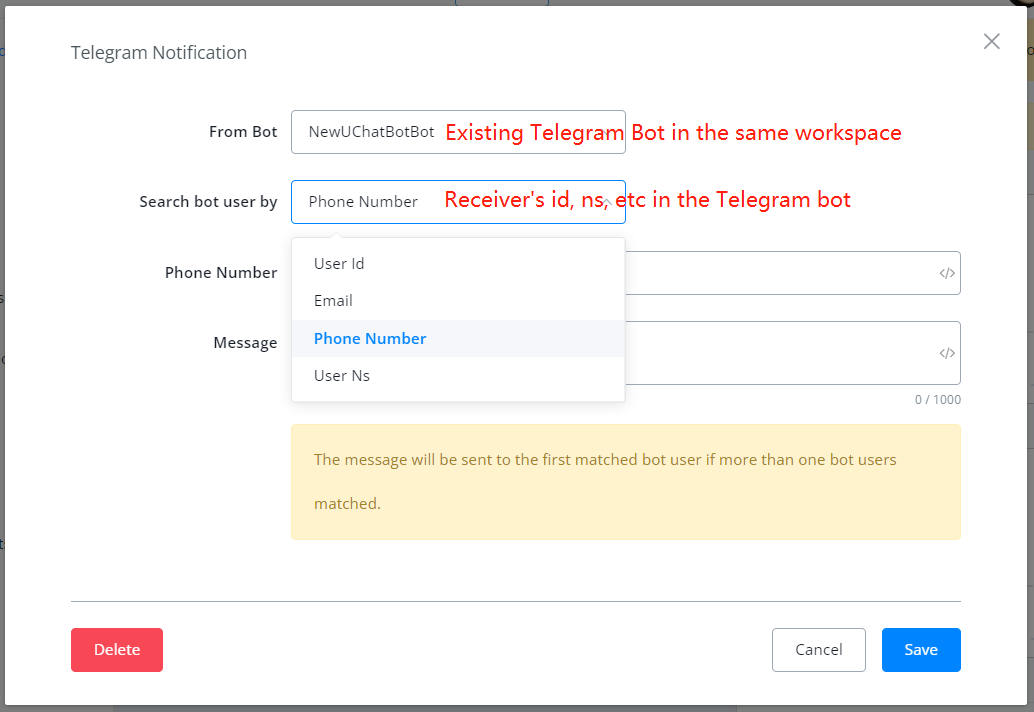
The same applies to Telegram notification. You must have a Telegram chatbot in the same workspace to send out a Telegram notification. And the receiver must be an existing bot user.

You can search a receiver in the Telegram bot by their Telegram User Id, User Ns, Email or Phone Number.

https://i.imgur.com/IYpP9Dh.png

Support system/custom fields in Google Sheet


This is an update about Google Sheet - Get Row / Get Multiple Row.

You can insert variables in your Google Sheet now.

- For system fields, put variable name. e.g. {{first_name}}
- For custom fields, put variable ns.      e.g. {{f244v1231}}


For example, this is a string store in your Google Sheet:

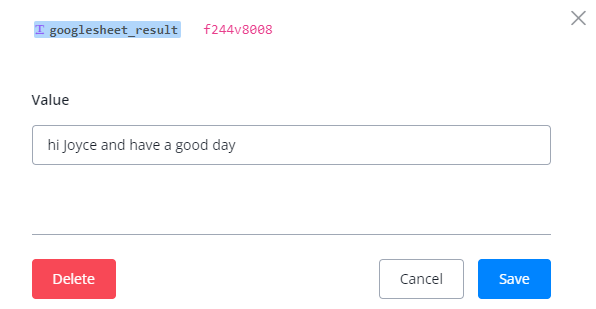
"hi {{first_name}} and {{f244v1231}}"

https://i.imgur.com/qASohmQ.png


When the system gets this string, it will translate all the variables to according values then store the result into the mapping field.

https://i.imgur.com/0BFs47S.png


How to get the name of a system field?

By lowercasing the word and having underlines as separators:

https://i.imgur.com/EipIgUq.png


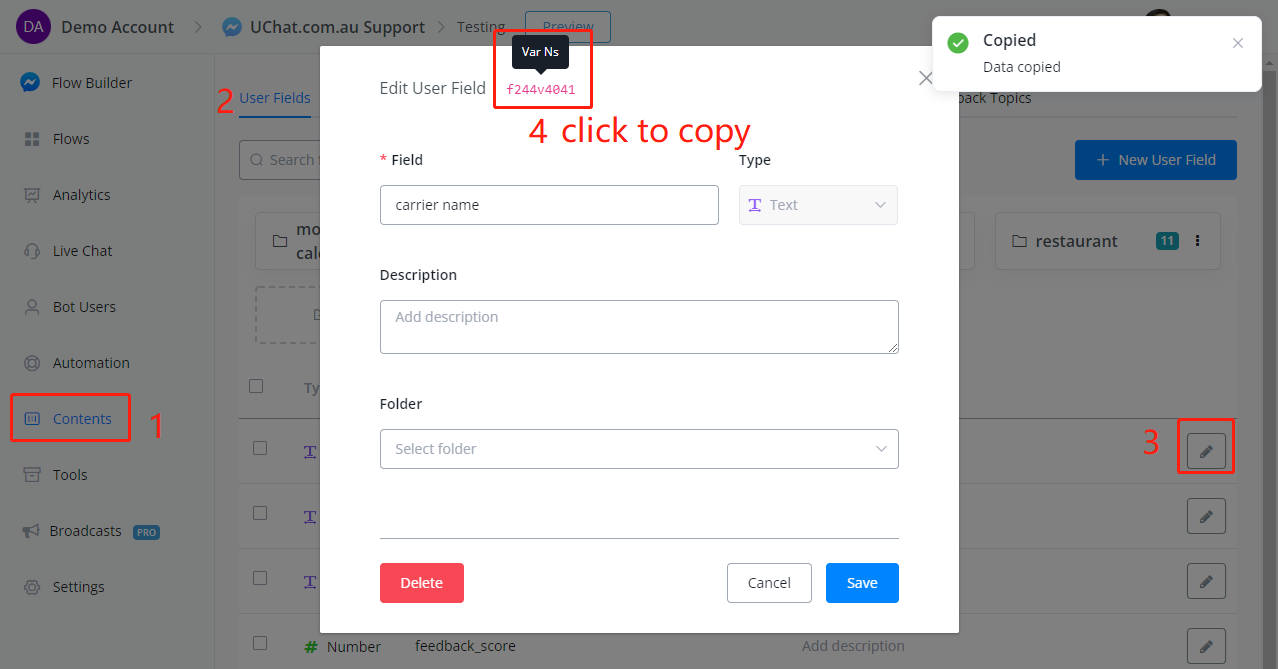
How to get the variable ns of a custom field?

https://i.imgur.com/5r23QJ7.png


Auto install free Mini-App when install the template


This is an update about Template.

Before the update, when users install a template and there are Mini-App actions used in the template, these actions will be removed.

Now those Mini-Apps used will be installed to the workspace automatically and those actions will be kept if the Mini-Apps are free to download.

If the Mini-App is not free, please guide your users to download the app before they install your templates.

Manage One-time Link for Templates (both in workspace & via API)


This is an update about Templates - One-time Link.

Before the update, the one-time link for a template is actually the same as a permanent shared link. The difference is the template turns from "shared" to "private" after one installation.

Now you can manage different one-time links for each sharing and you are able to track the status of the installation. Available status: "Available", "Installed" and "Expired".

You can manage your one-time link either:
- manually in your workspace or
- automatically via APIs

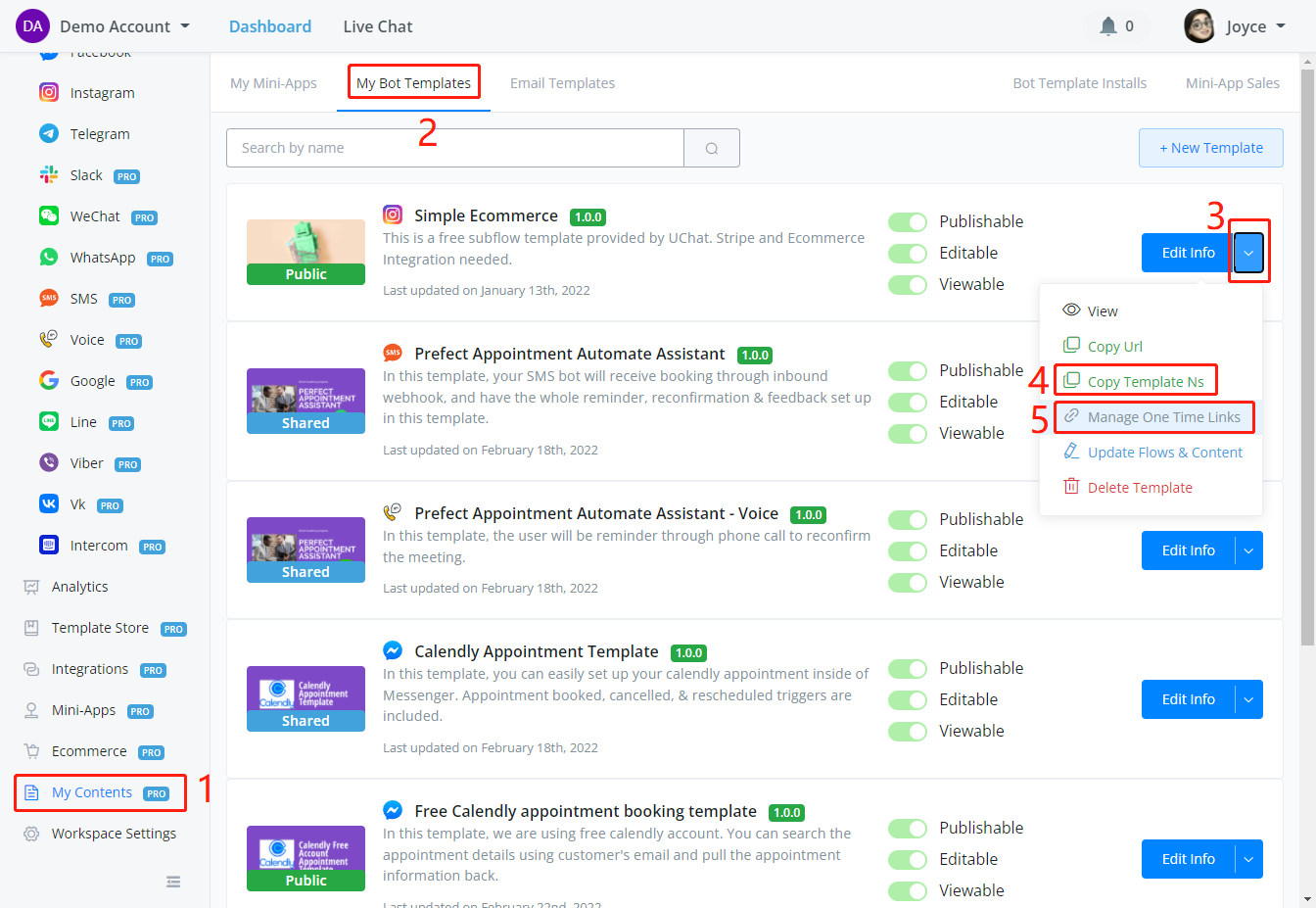
For manual management, on your dashboard, go "My Contents" - "My Bot Templates", select a template and the drop-down menu will show like this:

https://i.imgur.com/Ajbo6ey.png


Click on 4 in the above screenshot to get the "Template Ns", the id of this template for API usage.
Click on 5 in the above screenshot to generate a one-time link for this template:

https://i.imgur.com/C077JG2.png


Edit expiration duration and click "Generate New Link". This link will be added to the list and the status will be "Available" in the beginning. When the link is used and the template is installed, the status changes to "Installed". If the template is not installed within the duration, the status goes to "Expired".

To manage automatically via API calls:

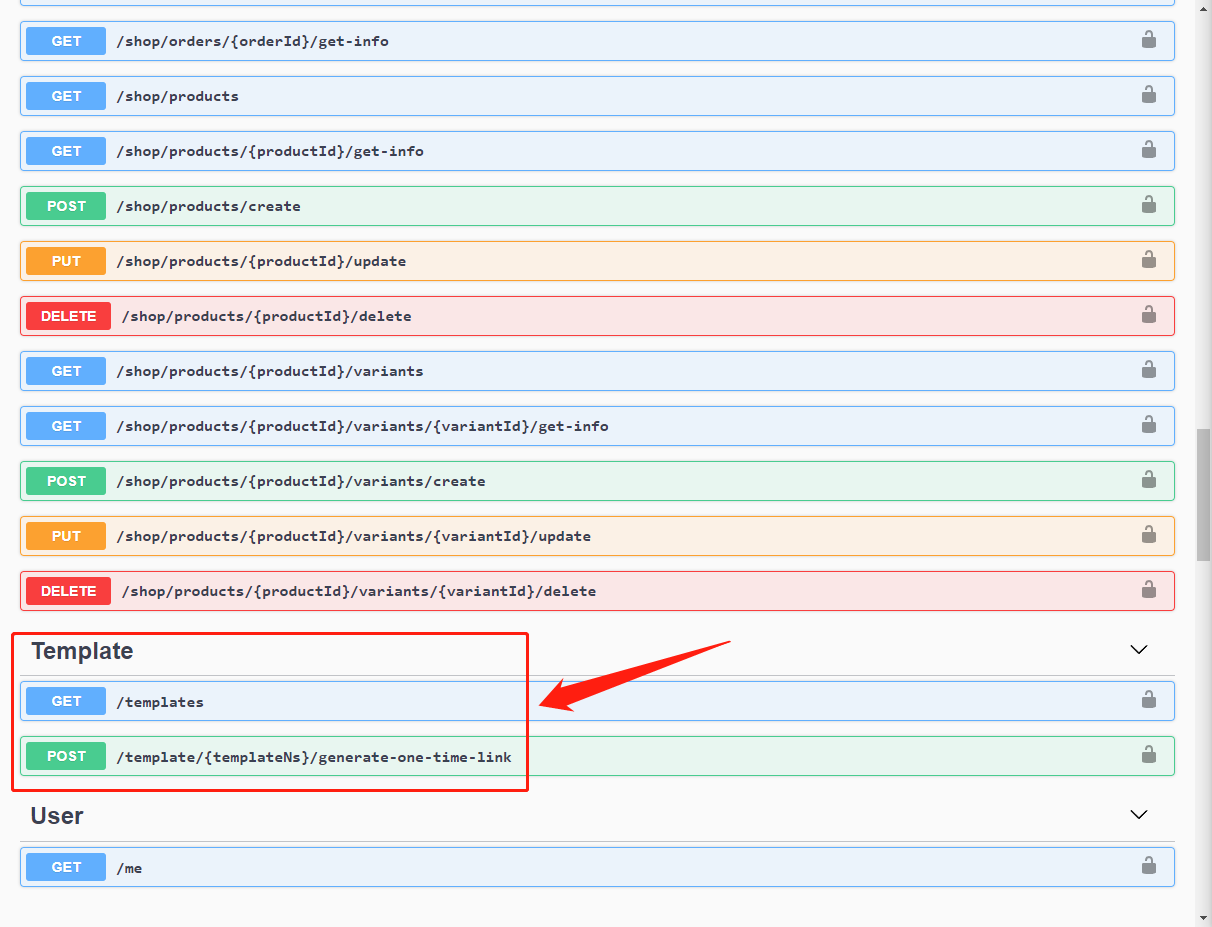
Visit template API through https://www.uchat.com.au/api#/Template

https://i.imgur.com/F2Qh0O9.png


Use the "Get Template" API to get a list of templates by template name, template ns (get template ns from the previous screenshot), etc.

Use the "Generate One Time Link" API to automatically generate a one-time link for the template.

Set Default Flow Builder Theme at Workspace Level


This is an update about workspace settings.

Before the update, each new flow is set to the "Default" theme.

Now you can set your favourite theme at the workspace level! No need to edit it every time you create a new bot!

Simply head to "Workspace Settings" on your dashboard, "Profile" settings:

https://i.imgur.com/WsamCua.png

"Math Formula Calculation" Added to "Set Variable Value" in Action Step


This is an update about the Action Step.

https://i.imgur.com/sHDee6i.png


Goto an Action Step, then "Set Variable Value", you can find "Math Formula Calculation" in Operation.

With this operation, you can now do formula calculation directly in the "Set Variable Value".

Math operations and function supported:

+, -, *, e, pi, PI, abs(), min(), max(), ceil(), floor(), log(), pow(), round(), sqrt(), sin(), cos(), tan()


*Please note that: if the formula is invalid, the system will return 0 to number variable and empty to text variable.

Media in Library Can be Deleted Now


Wherever you need to display a media, a "Select Media" window will show.

Under the "Upload Your File" tag, you can select media from your computer and all those uploaded media go to the "Library" tag. So that from now on you can pick the media in the library instead of uploading it again.

UChat just add a new feature to allow you to delete media in the library. Simply hover over the media and a red delete button will show, click on the button to remove this media from the library.

https://i.imgur.com/DEoYS4r.png


Switch Bot/Flow Feature available in All channels now!


Yesterday we added a new feature about switching bot/flow between different phone numbers in WhatsApp, SMS and Voice.

The feature is now available for all channels! But there is a difference to mention:

WhatsApp, SMS and Voice channel are using users' phone numbers for user_id (user identification), so there is no conflict when you switch a bunch of users from an old number to another phone number.

However, channels like Facebook are using user_id to identify users and each user_id is unique only under this page, it's not unique in the whole Facebook. If the user is switched from one Facebook page to another Facebook page carrying the old page user_id, conflicts might appear. 

Therefore, all bot users will be removed to avoid conflicts.


UNLINK:


when you unlink a bot (not in WhatsApp, SMS or Voice), your bot users are kept in the flow.


LINK:


when you link a bot (not in WhatsApp, SMS or Voice), all bot users in the flow are removed.

Switch Bot/Flow between Phone Numbers (WhatsApp, SMS & Voice)


Before the update, if you need to move a flow from no/one number to another, you will need to publish the old flow to be a template then install it to the new numbers. In that way, bot users in the old flow are not moved to the new number. Only the flow is moved.

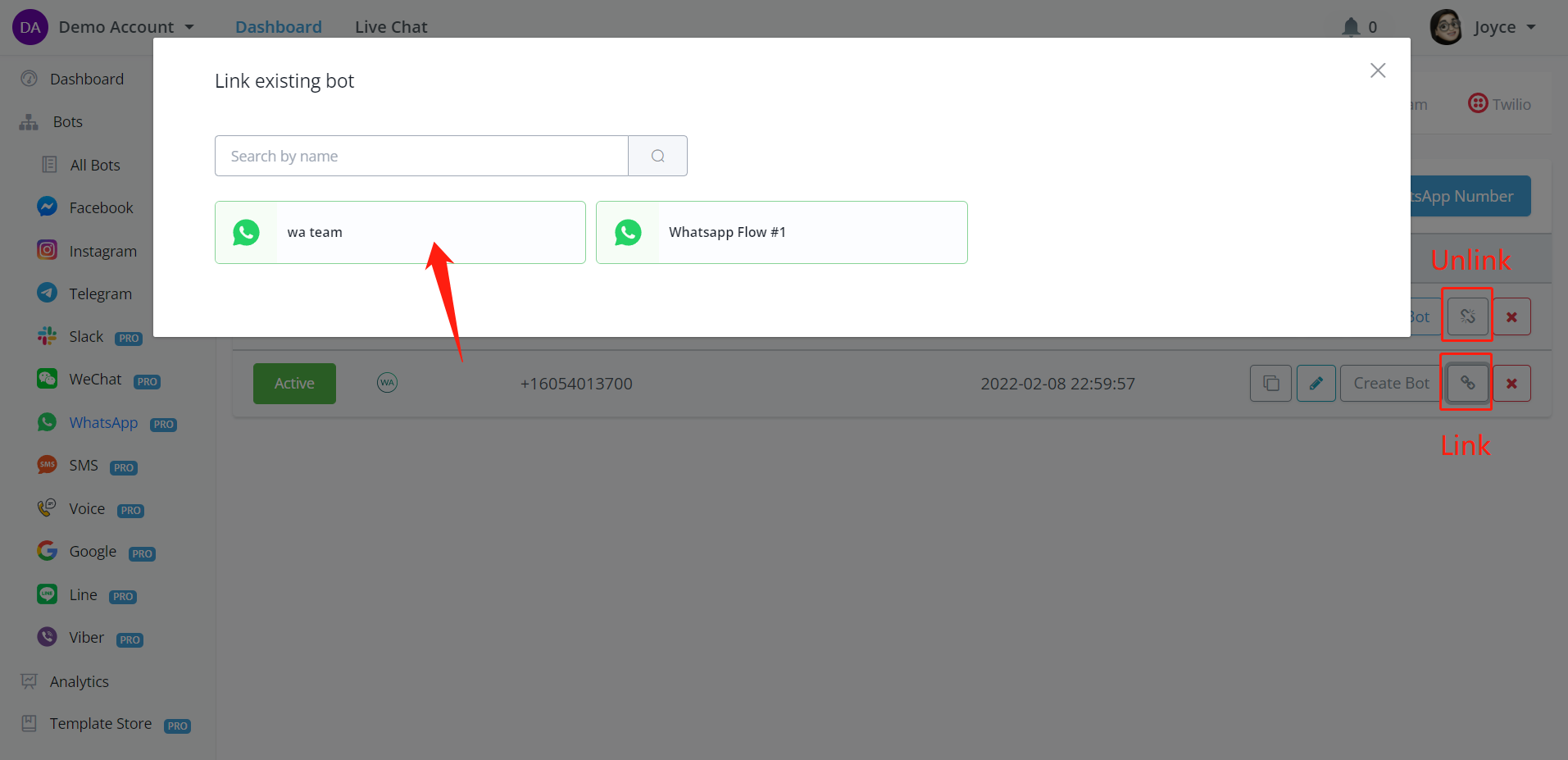
Now you can easily switch flow between numbers, all bot users are moved together with the flow and settings.

Simply, click on the unlink button to disconnect the flow with the number and click on link button, then choose a standalone flow to link the flow with the number:

https://i.imgur.com/1oCs1Me.png

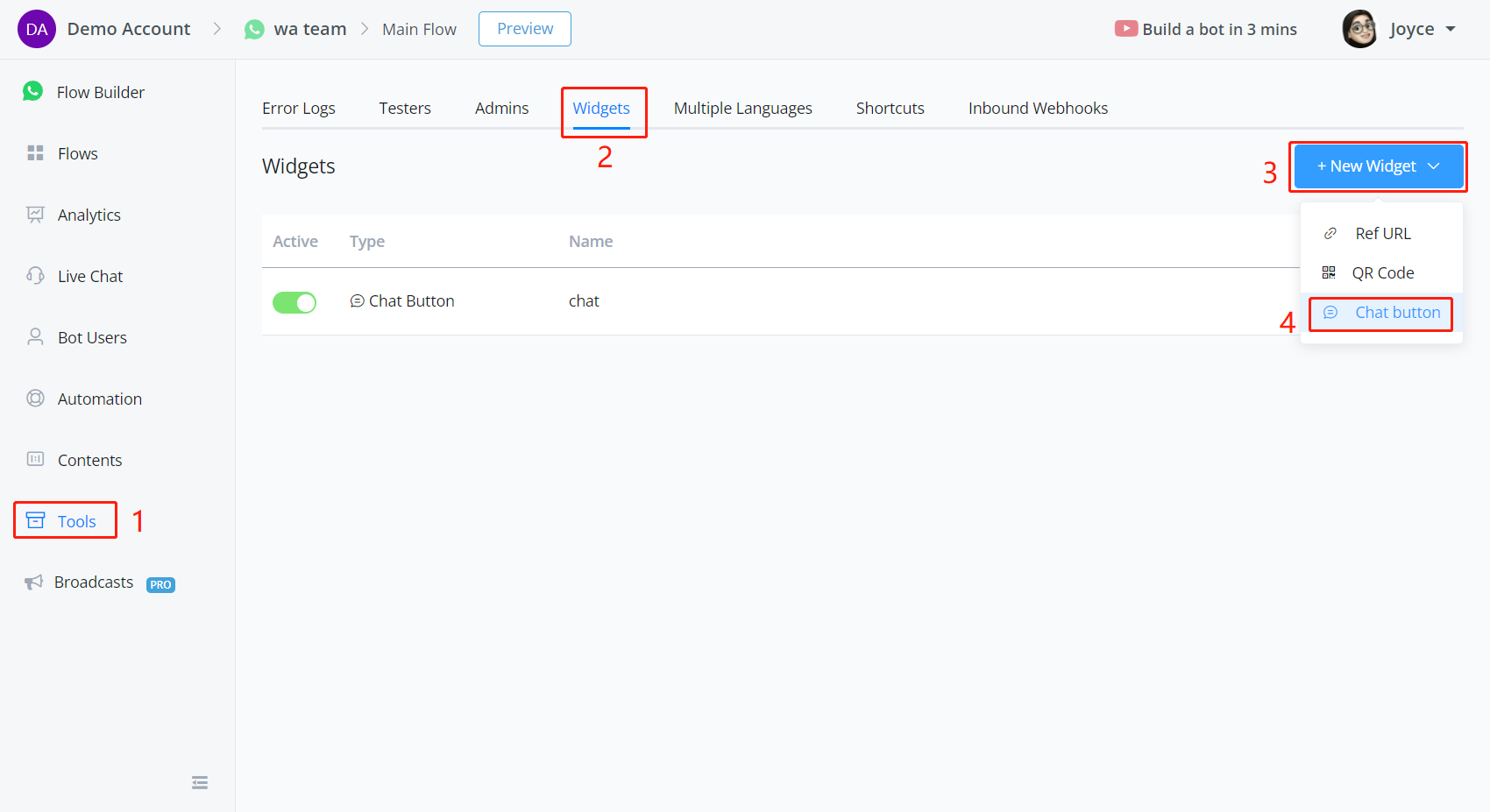
Add WhatsApp/Telegram/Line Chat Widget on your Website like Facebook Messenger


This is an update about Flow Builder - Tools - Widgets in WhatsApp, Telegram and Line channels.

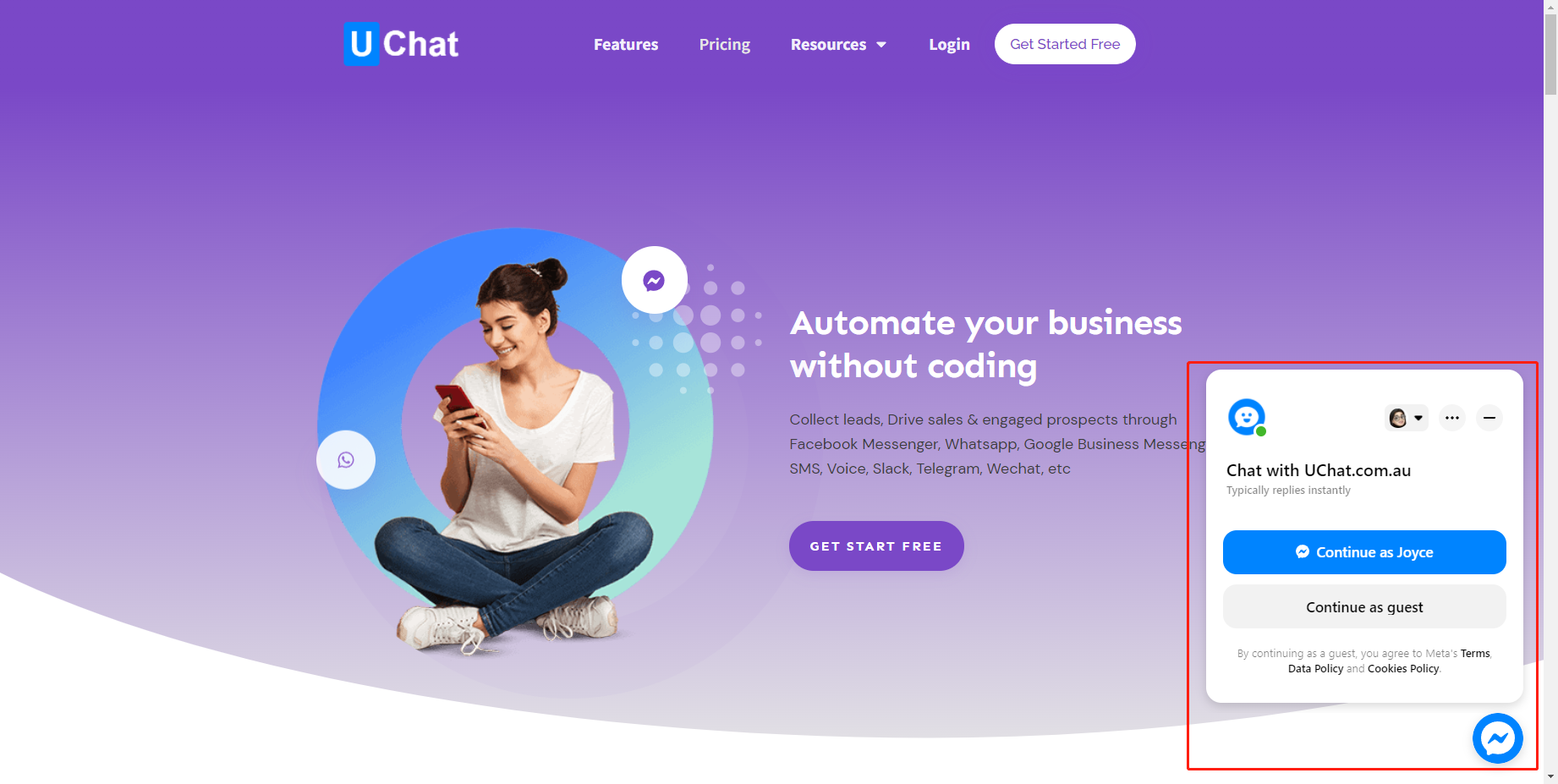
Before the update, you can only add Facebook Chatbot on your website like this:

https://i.imgur.com/gVCsPsj.png


Now you can add your WhatsApp chatbot to your website!

https://i.imgur.com/2zT3QXW.png


Follow steps 1-4 to create a new widget then click the pencil icon to enter the edit interface

https://i.imgur.com/gFtzkl4.png


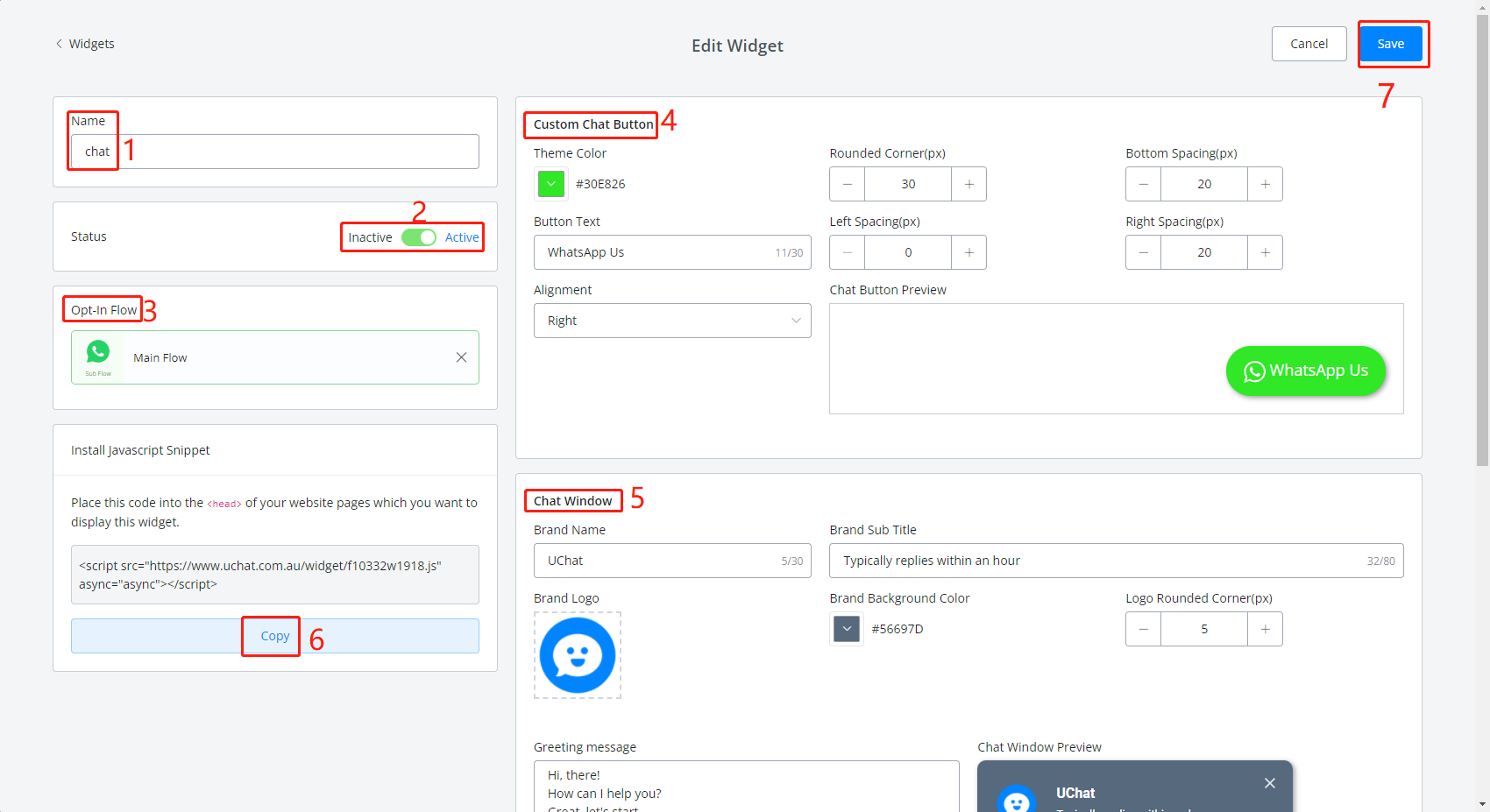
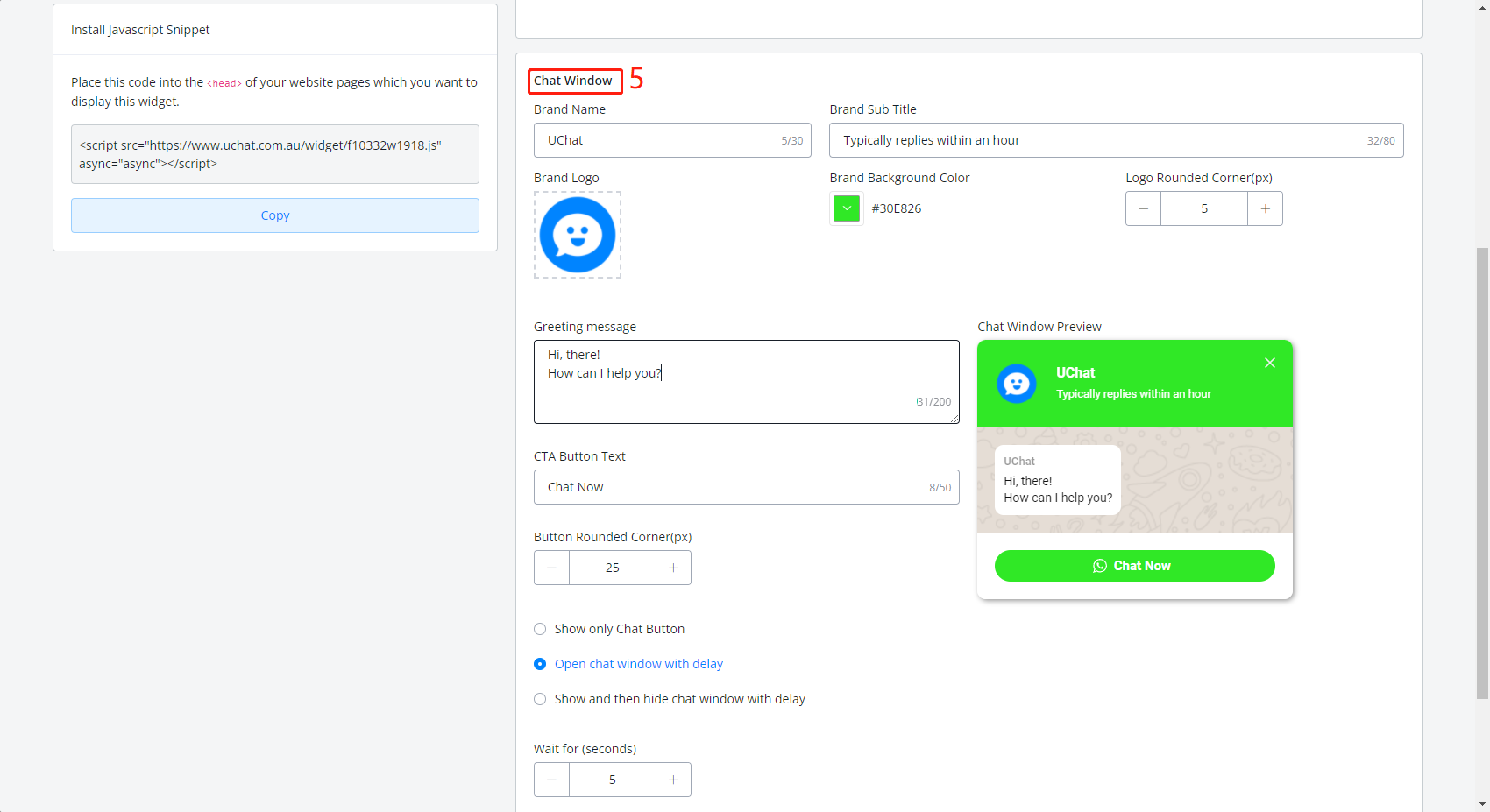
Follow steps 1-7 to edit the widget and save. Copy the snippet to your website page

https://i.imgur.com/4Fj6DIE.png


You can see what will the widget look like on your website while you edit it

Chat Widget Position on Website Can be Changed Now


This is an update about Chat Widget.

Before the update, the chat widget is in the bottom right corner of your website.

Now you can choose a different position.

Go Flow Builder - Settings - Channel - Chat Widget Customization - Edit - Save:

image.png 117.29 KB
Older updates
Powered by FeedBear